How to Setup Apollo Group TV on Samsung Smart TV: Complete 2025 Installation Guide
Quick Answer: Can You Install Apollo Group TV on Samsung Smart TV?
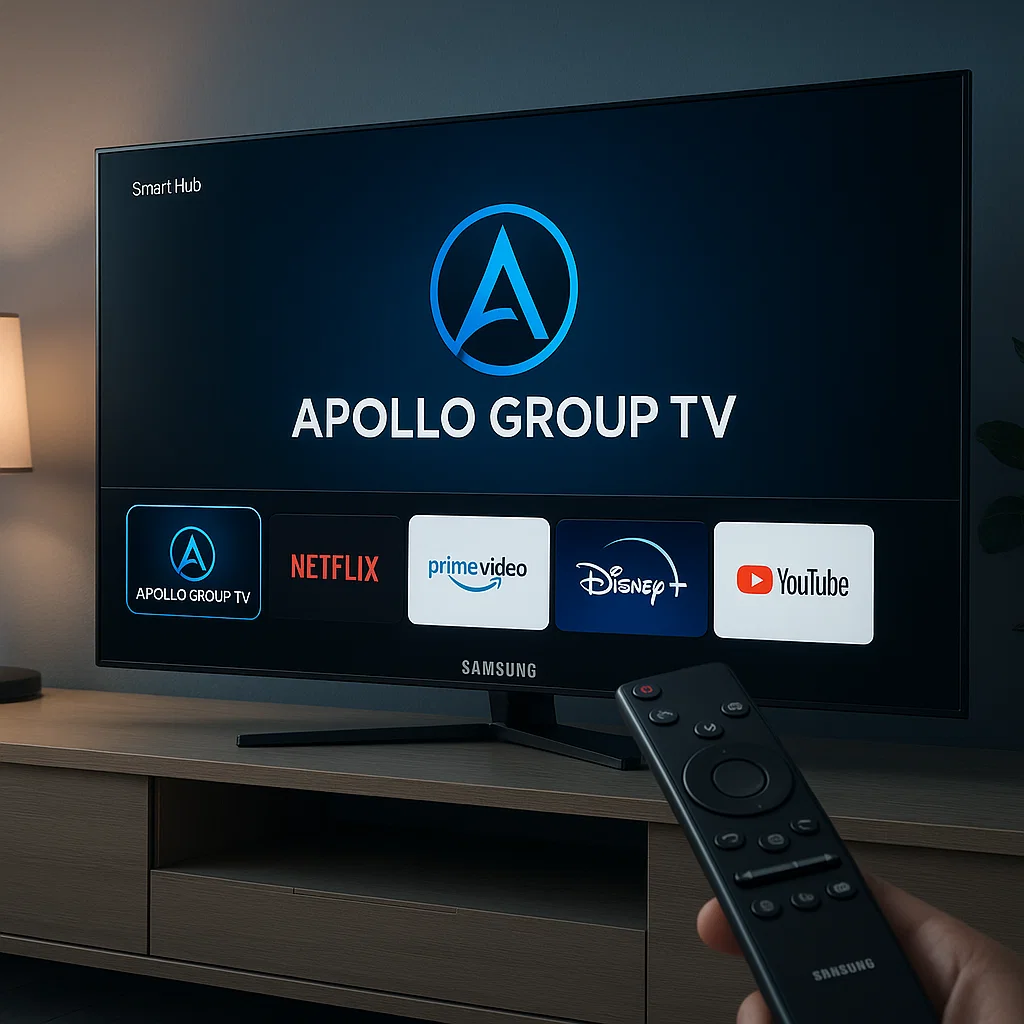
Yes, you can set up Apollo Group TV on your Samsung Smart TV, but not through a direct app installation. Samsung’s Tizen operating system doesn’t support sideloading Android APKs. However, you can use alternative methods like Smart IPTV players, M3U playlist integration, screen mirroring, or external streaming devices to enjoy Apollo Group TV content on your Samsung television.
This comprehensive guide walks you through every tested method to get Apollo Group TV working on your Samsung Smart TV in 2025.
Table of Contents
- What is Apollo Group TV?
- Understanding Samsung Smart TV Compatibility
- Requirements Before You Start
- Method 1: Using Smart IPTV App
- Method 2: IPTV Smarters Pro Installation
- Method 3: Screen Mirroring from Mobile Device
- Method 4: Using Amazon Fire Stick or Android Box
- How to Get Your Apollo Group TV M3U Link
- Activating Your Apollo Group TV Subscription
- Troubleshooting Common Issues
- Pros and Cons of Each Method
- Expert Tips for Best Streaming Experience
- Common Mistakes to Avoid
- Frequently Asked Questions
What is Apollo Group TV?
Apollo Group TV is a premium IPTV service that provides access to thousands of live television channels, movies, sports events, and on-demand content. The platform offers high-quality streams with minimal buffering, making it a popular choice among cord-cutters looking for affordable entertainment alternatives.
The service supports multiple devices and delivers content through M3U playlist URLs or dedicated applications. With subscription plans ranging from one month to a full year, Apollo Group TV has become a go-to solution for viewers seeking diverse international and domestic programming.
Understanding Samsung Smart TV Compatibility
Samsung Smart TVs run on the Tizen operating system, which is fundamentally different from Android TV. This distinction creates a significant challenge for IPTV services like Apollo Group TV.
Key Compatibility Points:
Tizen OS doesn’t support direct APK installations, meaning you cannot download and install Apollo Group TV’s Android app directly on your Samsung television. The TV’s app store has limited IPTV options compared to Android-based smart TVs. Samsung restricts third-party app installations for security and performance reasons.
However, Samsung Smart TVs excel at running web-based applications and IPTV players specifically designed for Tizen. They also support external connections through HDMI, making streaming devices an excellent workaround.
Requirements Before You Start
Before setting up Apollo Group TV on your Samsung Smart TV, ensure you have the following:
Essential Items:
A Samsung Smart TV with stable internet connection (2016 model or newer recommended). An active Apollo Group TV subscription with your credentials ready. Your Apollo Group TV M3U URL or login information. Either a compatible IPTV player app or an external streaming device. A smartphone or computer for initial setup steps.
Recommended Specifications:
Internet speed of at least 10 Mbps for HD streaming and 25 Mbps for 4K content. Ethernet connection preferred over WiFi for stability. Updated Samsung TV firmware to ensure compatibility with latest IPTV apps.
Method 1: Using Smart IPTV App
Smart IPTV is one of the most popular IPTV players available on Samsung Smart TVs. This method offers the most straightforward setup experience.
Step-by-Step Installation:
First, turn on your Samsung Smart TV and press the Smart Hub button on your remote. Navigate to the Samsung App Store using your remote control. Search for “Smart IPTV” in the app store search bar. Download and install the Smart IPTV application on your television.
Once installed, launch Smart IPTV. The app will display a unique MAC address on your screen. Note this MAC address carefully as you’ll need it for activation.
Adding Your Apollo Group TV Playlist:
Visit the Smart IPTV website on your computer or smartphone. Navigate to the “Add Playlist” or “My List” section. Enter your TV’s MAC address in the designated field. Paste your Apollo Group TV M3U link in the playlist URL section. Submit the information and wait 5-10 minutes for the system to process.
Return to your Samsung TV and restart the Smart IPTV app. Your Apollo Group TV channels should now appear in the interface.
Important Note: Smart IPTV offers a free trial period, after which it requires a one-time activation fee of approximately $6.99 for lifetime access.
Method 2: IPTV Smarters Pro Installation
IPTV Smarters Pro is another excellent option, though it requires a slightly different approach on Samsung TVs.
Installation Process:
Since IPTV Smarters Pro isn’t always available directly in the Samsung App Store, you’ll need to use the Tizen Store or alternative methods. Check if IPTV Smarters Pro is available in your region’s Samsung App Store. If available, download and install it directly.
For regions where it’s unavailable, you can access it through the Samsung Internet Browser. Open the Samsung Internet Browser on your TV. Navigate to the IPTV Smarters Pro web player version. Bookmark this page for easy future access.
Configuration Steps:
Launch IPTV Smarters Pro and select “Login with Xtream Codes API.” Enter your Apollo Group TV login credentials provided with your subscription. Input the server URL from your Apollo Group TV account details. Click “Add User” to finalize the setup.
The app will load your channel list, and you can start streaming immediately. IPTV Smarters Pro offers a clean interface with categories for live TV, movies, and series.
Method 3: Screen Mirroring from Mobile Device
Screen mirroring provides a simple workaround when direct installation isn’t possible.
Android Screen Mirroring:
Install the Apollo Group TV app on your Android smartphone from their official website. Ensure your phone and Samsung TV are connected to the same WiFi network. On your Samsung TV, go to Settings, then General, and select External Device Manager. Enable the “Device Connect Manager” option.
On your Android phone, swipe down to access Quick Settings. Tap on “Smart View,” “Screen Mirroring,” or “Cast” (terminology varies by manufacturer). Select your Samsung TV from the list of available devices. Once connected, open the Apollo Group TV app on your phone.
The content will now mirror on your television screen. You can navigate and select channels from your phone while viewing on the big screen.
iPhone Screen Mirroring:
For iPhone users, the process requires AirPlay support. Install Apollo Group TV on your iPhone. Ensure your iPhone and Samsung TV are on the same network. Swipe down from the top-right corner to open Control Center. Tap “Screen Mirroring” and select your Samsung TV.
If your Samsung TV supports AirPlay 2 (2018 models and newer), the connection will establish automatically. Older models may require a third-party AirPlay receiver app.
Method 4: Using Amazon Fire Stick or Android Box
This method provides the best overall experience and is highly recommended for regular IPTV users.
Setup with Fire Stick:
Connect your Amazon Fire Stick to an available HDMI port on your Samsung TV. Power on the Fire Stick and complete the initial setup. Navigate to Settings, then My Fire TV, and select Developer Options. Enable “Apps from Unknown Sources” to allow third-party installations.
Install the Downloader app from the Amazon App Store. Open Downloader and enter the Apollo Group TV APK download URL. Download and install the Apollo Group TV application. Launch the app, enter your login credentials, and start streaming.
Android Box Setup:
The process for Android TV boxes is similar but often simpler since they run full Android OS. Connect the Android box to your TV via HDMI. Access the device’s settings and enable installation from unknown sources. Download the Apollo Group TV APK directly or through a file manager app. Install and configure with your subscription details.
This method provides the smoothest experience with full app functionality, including EPG (Electronic Program Guide), favorites, and parental controls.
How to Get Your Apollo Group TV M3U Link

Your M3U link is essential for IPTV player setup on Samsung Smart TV.
Accessing Your M3U URL:
Log into your Apollo Group TV account on their official website. Navigate to your account dashboard or subscription details. Look for the section labeled “M3U Playlist URL” or “Xtream Codes.” Copy the complete M3U link provided (it typically starts with http:// or https://).
Some subscriptions provide both M3U links and Xtream Codes API credentials. Keep both handy as different IPTV players support different formats.
Security Reminder: Never share your M3U link or login credentials publicly. These are unique to your subscription and can be used to access your account.
Activating Your Apollo Group TV Subscription
Before streaming, you need an active Apollo Group TV subscription.
Subscription Options:
Apollo Group TV offers flexible pricing plans through their official website at apolloogrouptvs.com. Available plans include one-month, three-month, six-month, and twelve-month subscriptions. Longer subscriptions typically offer better value per month.
Payment Methods:
Apollo Group TV accepts various payment options for customer convenience. You can pay through PayPal for secure transactions, Bitcoin for privacy-focused users, or Cash App for quick mobile payments. Visit their pricing page to view current rates and special offers.
Activation Process:
After purchasing your subscription, you’ll receive an email with your login credentials. These typically include a username, password, and server URL. For M3U-based setup, you’ll receive a playlist link. For app-based setup, use the Xtream Codes credentials provided.
Keep your activation email safe and accessible for future reference or device changes.
Troubleshooting Common Issues
Even with careful setup, you may encounter some challenges. Here are solutions to frequent problems.
Channels Not Loading:
Verify your internet connection speed meets minimum requirements. Check if your Apollo Group TV subscription is active and hasn’t expired. Ensure the M3U link or login credentials are entered correctly without extra spaces. Restart your IPTV player app and refresh the playlist.
Buffering or Freezing:
Switch from WiFi to Ethernet connection for more stable streaming. Close other applications consuming bandwidth on your network. Lower video quality settings in your IPTV player if your connection is slow. Contact Apollo Group TV support to verify server status.
App Crashes or Won’t Open:
Update your Samsung TV firmware to the latest version available. Clear cache and data for the IPTV player app in TV settings. Uninstall and reinstall the IPTV application. Check if the app is compatible with your specific Samsung TV model year.
No Sound or Audio Issues:
Check your TV’s audio settings and ensure volume isn’t muted. Verify the audio track selection within the IPTV player. Test with different channels to isolate if it’s a channel-specific issue. Restart both your TV and IPTV application.
Pros and Cons of Each Method
Understanding the advantages and limitations of each setup method helps you choose the best option.
Smart IPTV Pros:
Direct installation on Samsung TV without additional hardware, user-friendly interface designed for TV remotes, stable performance with regular updates, and one-time payment for lifetime access.
Smart IPTV Cons:
Requires one-time activation fee after trial period, limited customization options compared to mobile apps, and occasional compatibility issues with very old Samsung models.
Screen Mirroring Pros:
No additional costs or installations on TV, works with any Samsung Smart TV model, and provides full app functionality from your phone.
Screen Mirroring Cons:
Drains smartphone battery quickly during extended viewing, potential lag or quality loss depending on WiFi strength, and phone becomes unavailable for other uses while streaming.
External Device Pros:
Best streaming performance and reliability, full Android app experience with all features, easy to move between different TVs, and supports multiple IPTV services simultaneously.
External Device Cons:
Requires additional hardware purchase (Fire Stick costs around $40, Android boxes $50-100), occupies an HDMI port on your TV, and adds another remote to manage.
Expert Tips for Best Streaming Experience
Maximize your Apollo Group TV experience on Samsung Smart TV with these professional recommendations.
Optimize Your Network:
Position your WiFi router closer to your TV or use a WiFi extender. Use 5GHz WiFi band instead of 2.4GHz for faster speeds. Set up Quality of Service (QoS) on your router to prioritize streaming traffic. Schedule large downloads during non-viewing hours.
App Configuration:
Enable hardware acceleration in your IPTV player settings when available. Set appropriate buffer size based on your internet speed (2-3 seconds for fast connections, 5-8 seconds for slower ones). Organize channels into favorites for quick access. Enable parental controls if children use the TV.
Content Management:
Regularly update your channel list to ensure access to latest programming. Bookmark frequently watched channels for one-click access. Use the EPG feature to plan viewing and set reminders. Clear app cache monthly to maintain optimal performance.
Security Considerations:
Consider using a VPN service for enhanced privacy while streaming. Keep your IPTV app and TV firmware updated with latest security patches. Never share your subscription credentials with others. Be cautious of unofficial Apollo Group TV resellers or fake websites.
Common Mistakes to Avoid
Learn from others’ errors to ensure smooth setup and operation.
Setup Mistakes:
Don’t skip TV firmware updates before installing IPTV apps. Avoid entering M3U links with spaces or incomplete URLs. Never use public WiFi networks for initial activation. Don’t ignore MAC address case sensitivity when registering with Smart IPTV.
Usage Errors:
Avoid running multiple IPTV apps simultaneously, which causes conflicts. Don’t expect instant channel loading on first app launch (initial loading takes time). Never use extremely long or complex playlist URLs without testing first. Don’t forget to check subscription expiration dates.
Technical Oversights:
Failing to test with different channels when troubleshooting issues. Assuming all IPTV apps work identically across all Samsung TV models. Neglecting to check Apollo Group TV’s official support resources. Overlooking simple solutions like TV restarts when problems occur.
Conclusion
Setting up Apollo Group TV on Samsung Smart TV requires a bit more effort than on Android devices, but it’s entirely achievable through multiple proven methods. Whether you choose Smart IPTV for direct installation, screen mirroring for simplicity, or an external streaming device for optimal performance, you can enjoy thousands of channels on your Samsung television.
The key to success lies in understanding your Samsung TV’s Tizen limitations and selecting the method that best fits your technical comfort level and budget. For most users, investing in an affordable Fire Stick or Android box provides the best long-term experience with full functionality and regular updates.
Remember to maintain an active Apollo Group TV subscription through their official website, keep your login credentials secure, and optimize your network connection for the best streaming quality. With proper setup and maintenance, you’ll enjoy reliable IPTV entertainment on your Samsung Smart TV for years to come.
Frequently Asked Questions
Can I directly install Apollo Group TV APK on Samsung Smart TV?
No, you cannot directly install Apollo Group TV APK on Samsung Smart TV because Samsung uses the Tizen operating system, not Android. Tizen doesn’t support APK files. You must use alternative methods like IPTV player apps, screen mirroring, or external Android devices to access Apollo Group TV on your Samsung television.
What is the best IPTV player for Samsung Smart TV?
Smart IPTV is considered the best dedicated IPTV player for Samsung Smart TV due to its native Tizen support, stable performance, and user-friendly interface. It works seamlessly with Apollo Group TV M3U links and requires only a one-time activation fee after the trial period.
How do I get my Apollo Group TV M3U link?
Log into your Apollo Group TV account on their official website, navigate to your subscription or account details section, and locate the M3U Playlist URL or Xtream Codes credentials. Copy this link carefully and use it to configure your IPTV player on Samsung Smart TV.
Why is my Apollo Group TV buffering on Samsung TV?
Buffering typically occurs due to slow internet connection, network congestion, or server issues. Switch to Ethernet connection instead of WiFi, close other bandwidth-consuming applications, reduce video quality in player settings, or contact Apollo Group TV support to check server status.
Does Apollo Group TV work on all Samsung Smart TV models?
Apollo Group TV works on most Samsung Smart TV models from 2016 onwards through compatible IPTV players or external devices. Older models may have limited app compatibility but can still use screen mirroring or streaming devices like Fire Stick to access the service.
How much does Apollo Group TV subscription cost?
Apollo Group TV offers multiple subscription tiers including one-month, three-month, six-month, and twelve-month plans with varying prices. Longer subscriptions provide better value per month. Visit their official pricing page at apolloogrouptvs.com for current rates and payment options including PayPal, Bitcoin, and Cash App.
Is using Apollo Group TV on Samsung TV legal?
The legality of IPTV services depends on your location and whether the service has proper licensing for the content it streams. Apollo Group TV is a subscription-based service, but users are responsible for ensuring their use complies with local laws and regulations regarding streaming content.
Can I use Apollo Group TV on multiple Samsung TVs?
Most Apollo Group TV subscriptions allow one simultaneous connection, meaning you can install it on multiple devices but stream on only one at a time. Check your specific subscription plan details for multi-device or multi-connection options if you need to stream on several TVs simultaneously.